
Introducing ggc — A Go-Based Git Tool
What is ggc?
ggc is a Git workflow tool written in Go. It wraps everyday Git sub-commands under a consistent surface and adds an interactive fuzzy-search TUI so you can find and execute commands without memorising their exact names. It includes Workflow Mode, customisable aliases with placeholder support, and a layered keybinding profile system — this article covers them all. ggc is listed on Awesome Go.
Demo
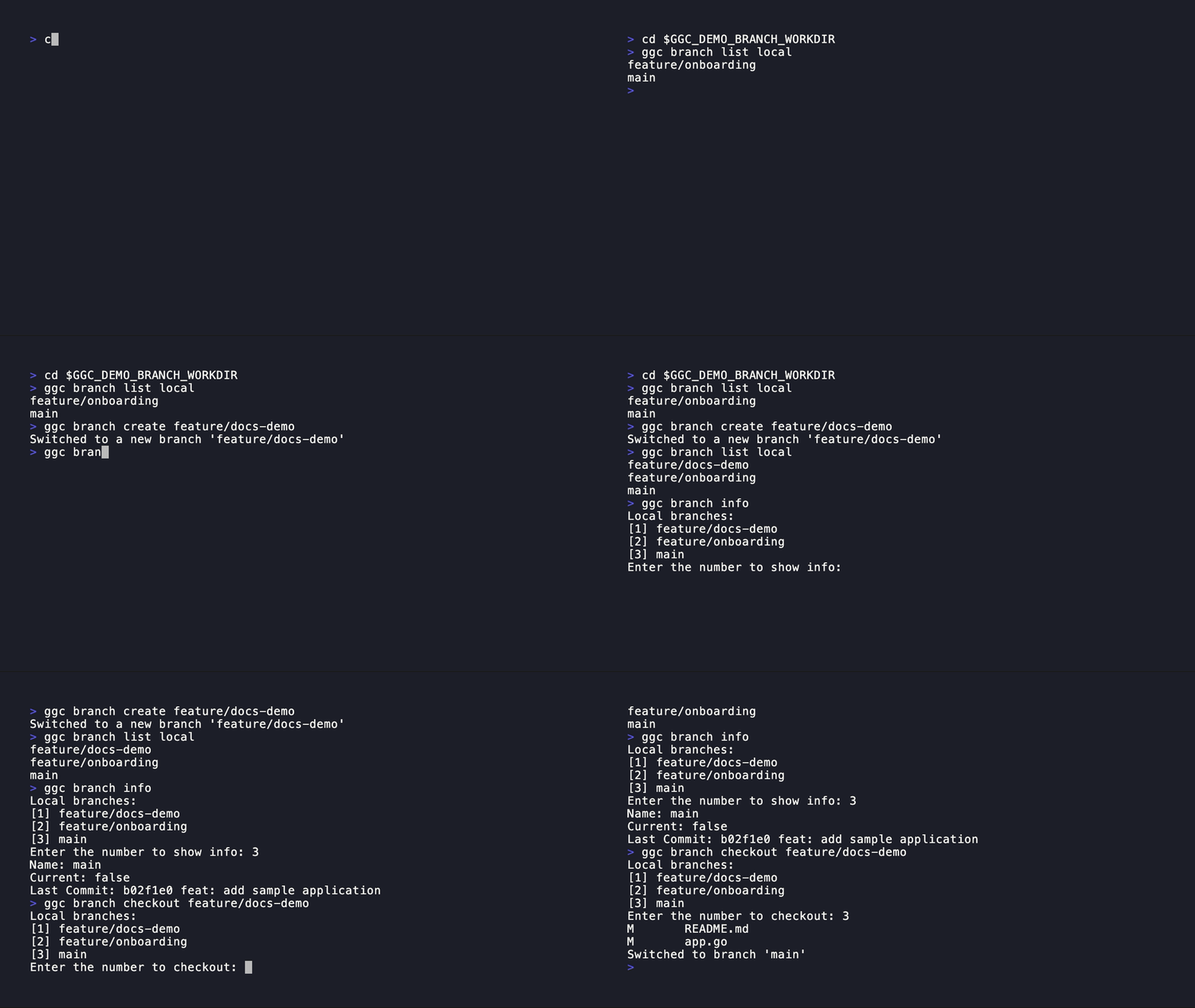
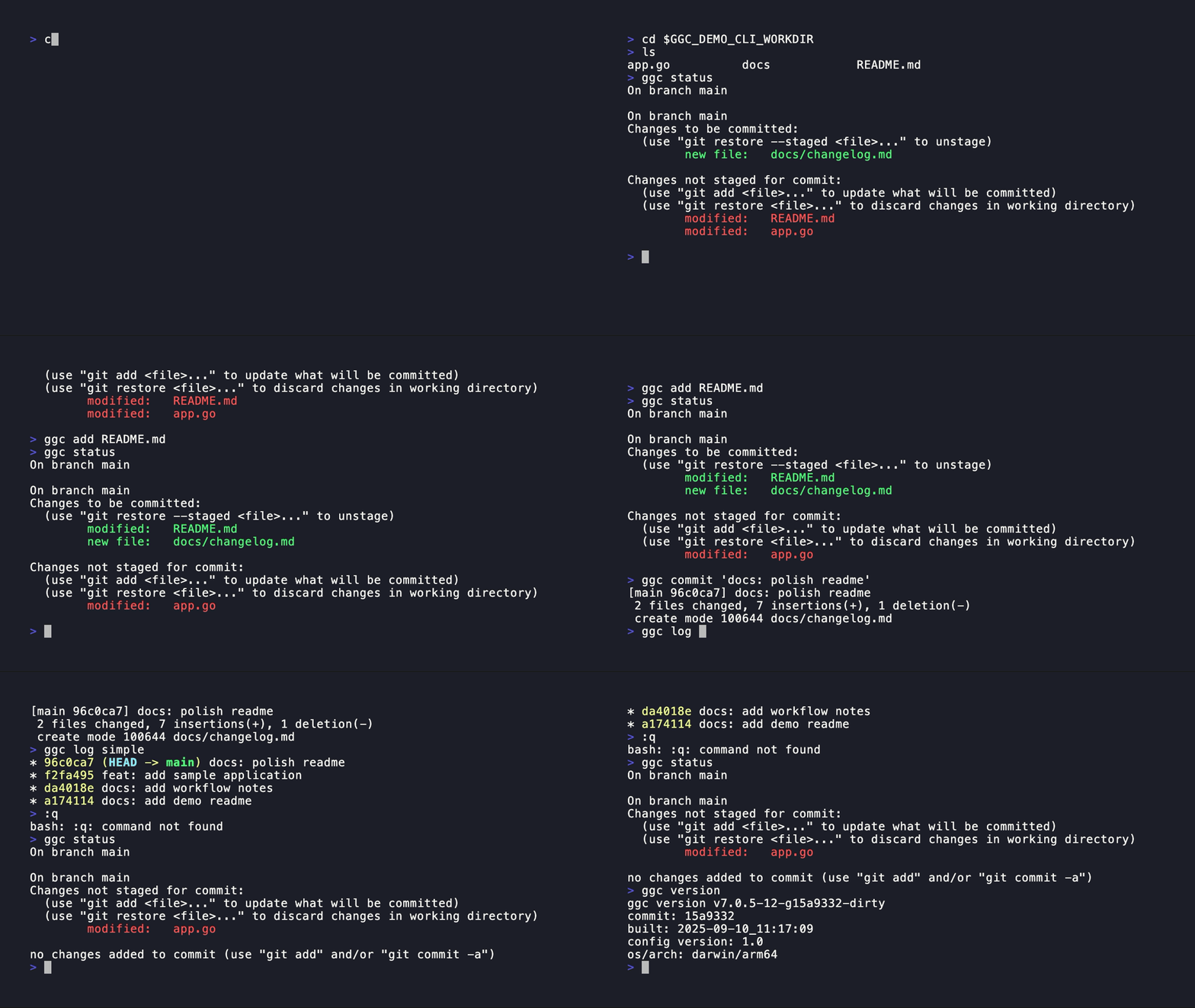
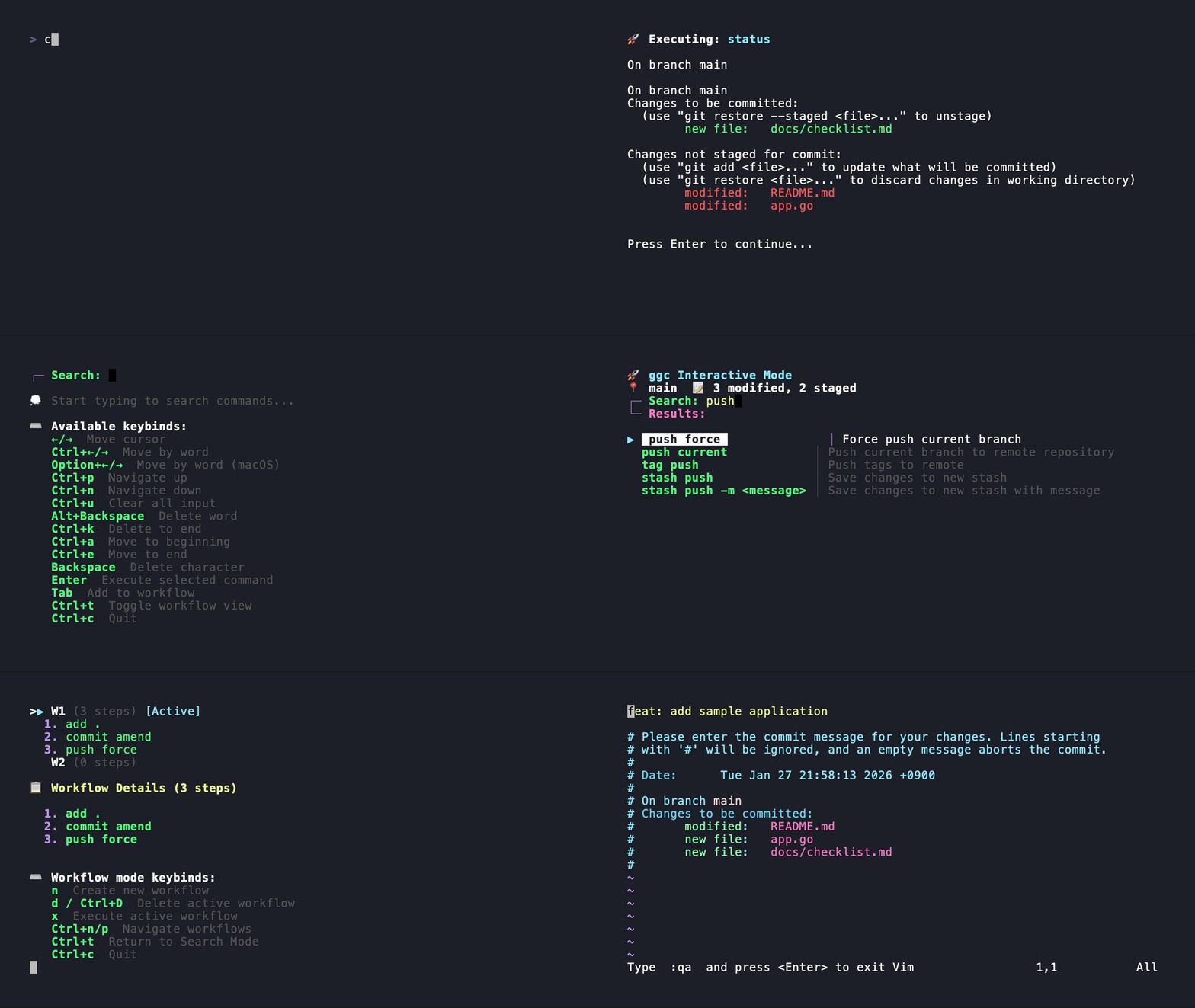
| Branch Management | CLI Workflow | Interactive Overview |
|---|---|---|
 |
 |
 |
Why use ggc?
No memorising required
Git ships hundreds of subcommands. Mid-task, pausing to recall "what was the flag for amend without editing the message?" or "how do I reference stash@{2} again?" is a common friction point. In ggc's interactive mode, typing bd instantly narrows to branch delete, ca to commit amend, and ss to stash show. The discovery cost drops to zero.
Representative use cases
Daily add → commit → push: Queue all three commands in Workflow Mode and press x to run them. Placeholder tokens such as <message> pause and prompt you at runtime, so you are never retyping the same workflow just to change the commit message.
Branch housekeeping: branch checkout remote creates a local tracking branch from a remote in one step; branch delete merged bulk-removes merged local branches. ggc surfaces these composite operations as first-class named commands rather than flags to look up.
Fixup workflow: Register commit fixup <commit> → rebase autosquash as a sequence alias. One ggc fixup <sha> invocation applies the fixup commit.
Hook management: hook list / hook enable / hook disable let you manage project Git hooks without touching the file system directly.
How ggc compares to other tools
| Tool | Mode | Strength | vs ggc |
|---|---|---|---|
git (bare) |
CLI | Full power, fine-grained flags | Requires memorising command names and flags |
lazygit |
TUI only | Rich panel UI | Hard to call from scripts |
tig |
TUI (read-only) | Log / diff visualisation | No mutation operations |
gh |
CLI | GitHub integration | Not a local Git tool |
| git aliases | CLI | Fully custom | No discoverability; must write everything yourself |
ggc's key advantage is free switching between CLI and TUI. Scripts call ggc push force directly; interactive sessions run ggc for the fuzzy TUI. Both paths hit the same Route() implementation, so behaviour is identical.
CLI/Interactive Architecture
ggc has two execution paths: the CLI path for direct commands and the interactive path for the full-screen TUI. The Execute() method in cmd/execute.go is the single entry point that decides which path to take:
func (c *Cmd) Execute(args []string) error {
    if len(args) == 0 {
        c.Interactive()
        return nil
    }

    cmdName, cmdArgs := args[0], args[1:]

    // Check if this is an alias
    if c.configManager != nil && c.configManager.GetConfig().IsAlias(cmdName) {
        return c.executeAlias(cmdName, cmdArgs)
    }

    // Regular command
    return c.Route(args)
}
When no arguments arrive, Interactive() launches the TUI. When the caller provides an alias name, executeAlias() resolves and runs it. Everything else goes to Route(), which dispatches to individual Git command handlers. The CLI path, the alias expander, and the Workflow executor all share the same Route() function.
Interactive Mode Design
The interactive TUI splits into two sub-modes that share a single terminal screen, toggled with Ctrl+t.
Search Mode — Fuzzy Search
Search Mode is the default. It shows a list of all ggc commands and updates the filtered list as you type. The matchPattern() function in internal/interactive/fuzzy.go handles the scoring:
func matchPattern(textRunes, patternRunes []rune) (bool, matchMetadata) {
    meta := matchMetadata{firstIndex: -1, lastIndex: -1}
    textIdx := 0
    patternIdx := 0

    for textIdx < len(textRunes) && patternIdx < len(patternRunes) {
        if textRunes[textIdx] == patternRunes[patternIdx] {
            if meta.firstIndex == -1 {
                meta.firstIndex = textIdx
            }
            if meta.lastIndex != -1 {
                meta.gapScore += textIdx - meta.lastIndex - 1
            }
            meta.lastIndex = textIdx
            patternIdx++
        }
        textIdx++
    }

    if patternIdx != len(patternRunes) {
        return false, meta
    }
    return true, meta
}
The algorithm is a classic subsequence fuzzy matcher: a pattern matches if all its characters appear in the text in order, but not necessarily consecutively. The matchMetadata struct accumulates three signals — firstIndex (where the match starts), gapScore (total inter-character gaps), and lastIndex — which combine into a matchScore for sorting. A tighter, earlier match ranks higher than a sparse, late one.
Workflow Mode
Pressing Ctrl+t calls ToggleWorkflowView() in internal/interactive/ui_mode.go:
func (ui *UI) ToggleWorkflowView() {
    if ui.state.IsWorkflowMode() {
        ui.enterSearchMode()
        return
    }
    ui.enterWorkflowMode()
}
In Workflow Mode you can build up a sequence of ggc commands (e.g. add → commit → push) by pressing Tab on any item in the search list. When you press x, the WorkflowExecutor.Execute() method runs them in order:
func (we *WorkflowExecutor) Execute(workflow *Workflow) error {
    steps := workflow.GetSteps()
    if len(steps) == 0 {
        return fmt.Errorf("workflow is empty")
    }

    for i, step := range steps {
        resolvedArgs, canceled := resolveStepPlaceholders(we.ui, step)
        if canceled {
            return ErrWorkflowCanceled
        }

        parts := append([]string{step.Command}, resolvedArgs...)
        if err := we.router.Route(parts); err != nil {
            return fmt.Errorf("step %d/%d failed: %w", i+1, len(steps), err)
        }
    }
    return nil
}
Before each step, resolveStepPlaceholders() scans the step arguments for <name> tokens and prompts you interactively if any turn up. A workflow step like commit -m <message> will pause and ask for the commit message at runtime.
Available Commands
A full reference of every ggc command. All of these can be called directly from the CLI or discovered via the interactive fuzzy-search UI using the same names.
| Command | Description |
|---|---|
add . |
Add all changes to the index |
add <file> |
Add a specific file to the index |
add interactive |
Add changes interactively |
add patch |
Add changes interactively (patch mode) |
help |
Show main help message |
help <command> |
Show help for a specific command |
reset |
Hard reset to origin/ and clean working directory |
reset hard <commit> |
Hard reset to specified commit |
reset soft <commit> |
Soft reset: move HEAD but keep changes staged |
branch checkout |
Switch to an existing branch |
branch checkout remote |
Create and checkout a local branch from the remote |
branch contains <commit> |
Show branches containing a commit |
branch create |
Create and checkout a new branch |
branch current |
Show current branch name |
branch delete |
Delete local branch |
branch delete merged |
Delete local merged branches |
branch info <branch> |
Show detailed branch information |
branch list local |
List local branches |
branch list remote |
List remote branches |
branch list verbose |
Show detailed branch listing |
branch move <branch> <commit> |
Move branch to specified commit |
branch rename <old> <new> |
Rename a branch |
branch set upstream <branch> <upstream> |
Set upstream for a branch |
branch sort [date|name] |
List branches sorted by date or name |
commit <message> |
Create commit with a message |
commit allow empty |
Create an empty commit |
commit amend |
Amend previous commit (editor) |
commit amend no-edit |
Amend without editing commit message |
commit fixup <commit> |
Create a fixup commit targeting <commit> |
log graph |
Show log with graph |
log simple |
Show simple historical log |
fetch |
Fetch from the remote |
fetch prune |
Fetch and clean stale references |
pull current |
Pull current branch from remote |
pull rebase |
Pull and rebase |
push current |
Push current branch to remote |
push force |
Force push current branch |
remote add <name> <url> |
Add remote repository |
remote list |
List all remote repositories |
remote remove <name> |
Remove remote repository |
remote set-url <name> <url> |
Change remote URL |
status |
Show working tree status |
status short |
Show concise status (porcelain format) |
clean dirs |
Clean untracked directories |
clean files |
Clean untracked files |
clean interactive |
Clean files interactively |
restore . |
Restore all files in working directory from index |
restore <commit> <file> |
Restore file from specific commit |
restore <file> |
Restore file in working directory from index |
restore staged . |
Unstage all files |
restore staged <file> |
Unstage file (restore from HEAD to index) |
diff |
Show changes (git diff HEAD) |
diff head |
Alias for default diff against HEAD |
diff staged |
Show staged changes |
diff unstaged |
Show unstaged changes |
tag annotated <tag> <message> |
Create annotated tag |
tag create <tag> |
Create tag |
tag delete <tag> |
Delete tag |
tag list |
List all tags |
tag push |
Push tags to remote |
tag show <tag> |
Show tag information |
config get <key> |
Get a specific config value |
config list |
List all configuration |
config set <key> <value> |
Set a configuration value |
hook disable <hook> |
Disable a hook |
hook edit <hook> |
Edit a hook's contents |
hook enable <hook> |
Enable a hook |
hook install <hook> |
Install a hook |
hook list |
List all hooks |
hook uninstall <hook> |
Uninstall an existing hook |
rebase <upstream> |
Rebase current branch onto <upstream> |
rebase abort |
Abort an in-progress rebase |
rebase autosquash |
Interactive rebase with --autosquash |
rebase continue |
Continue an in-progress rebase |
rebase interactive |
Interactive rebase |
rebase skip |
Skip current patch and continue |
stash |
Stash current changes |
stash apply |
Apply stash without removing it |
stash apply <stash> |
Apply specific stash without removing it |
stash branch <branch> |
Create branch from stash |
stash branch <branch> <stash> |
Create branch from specific stash |
stash clear |
Remove all stashes |
stash create |
Create stash and return object name |
stash drop |
Remove the latest stash |
stash drop <stash> |
Remove specific stash |
stash list |
List all stashes |
stash pop |
Apply and remove the latest stash |
stash pop <stash> |
Apply and remove specific stash |
stash push |
Save changes to new stash |
stash push -m <message> |
Save changes to new stash with message |
stash save <message> |
Save changes to new stash with message |
stash show |
Show changes in stash |
stash show <stash> |
Show changes in specific stash |
stash store <object> |
Store stash object |
debug-keys |
Show current keybindings |
debug-keys raw |
Capture key sequences interactively |
debug-keys raw <file> |
Capture key sequences and save to a file |
quit |
Exit interactive mode |
version |
Display current ggc version |
Other Features
Config-Based Workflows
Separate from aliases, the workflows: section of ~/.ggcconfig.yaml lets you pre-register workflows that load automatically into Workflow Mode when the TUI starts. They sit alongside any workflows you build interactively with Tab.
workflows:
  daily:
    - "add ."
    - "commit -m <message>"
    - "push current"
  deploy:
    - "branch checkout <branch>"
    - "pull current"
    - "push <branch>"
Any <name> token in a step is prompted interactively at execution time. The key difference from aliases (shorthand invoked from the CLI) is that config-based workflows are multi-step sequences that live in Workflow Mode and are reusable across sessions.
Command Aliases
ggc defines aliases in ~/.ggcconfig.yaml. Both simple and sequence formats work:
aliases:
  br: branch          # simple — ggc br list
  ci: commit

  quick:              # sequence
    - status
    - add .
    - commit

  deploy:             # sequence with placeholders
    - "branch checkout {0}"
    - "pull current"
    - "push {0}"
Keybinding Profiles
The interactive UI supports four built-in keybinding profiles (default, emacs, vi, readline). Configuration resolves in six layers — defaults → profile → platform → terminal → user config → environment overrides:
interactive:
  profile: emacs
  keybindings:
    move_up: "ctrl+p"
    move_down: "ctrl+n"
    toggle_workflow_view: "ctrl+t"
    add_to_workflow: "tab"
Cross-Platform Builds
ggc distributes pre-built binaries for Linux, macOS, and Windows (amd64 / arm64 / 386) via GoReleaser. All interactive TUI features work on all three platforms.
Shell Completion
ggc ships completion scripts for Bash, Zsh, and Fish. Pre-built scripts live in tools/completions/ and can be regenerated from the command registry with make completions.
# Bash (add to ~/.bash_profile or ~/.bashrc)
if [ -f ~/.ggc-completion.bash ]; then
  . ~/.ggc-completion.bash
fi

# Zsh (add to ~/.zshrc)
if [ -f ~/.ggc-completion.zsh ]; then
  . ~/.ggc-completion.zsh
fi

# Fish (add to ~/.config/fish/config.fish)
if test -f ~/.ggc-completion.fish
    source ~/.ggc-completion.fish
end
Once enabled, ggc b<Tab> completes to branch, and ggc branch <Tab> expands into the full list of subcommands.
Unified Syntax and -- Separator
ggc uses a flagless, space-separated syntax — no -x/--long options exist. All operations are expressed as subcommands (e.g. ggc fetch prune, ggc commit allow empty). Arguments after -- are treated as data rather than commands, so strings starting with - can be passed safely.
# Passing an argument that starts with -
ggc commit -- "-fix leading dash"
This keeps CLI behaviour predictable and easy to embed in scripts.
Soft Cancel
To abandon the current interactive operation and return to Search Mode without exiting the TUI, press Ctrl+G (or Esc when no escape sequence follows). Ctrl+C exits interactive mode entirely; Ctrl+G returns you to the search screen while staying inside the TUI.
debug-keys Command
A built-in command for verifying and troubleshooting keybindings:
# Display all current keybinding settings
ggc debug-keys

# Capture key sequences sent by the terminal in real time
ggc debug-keys raw

# Save captured key sequences to a file
ggc debug-keys raw keydump.txt
Running ggc debug-keys raw and pressing a key shows the exact byte sequence your terminal sends — useful for diagnosing why a keybinding is not triggering as expected.
tmux Support
If key input behaves unexpectedly inside tmux, add the following to .tmux.conf:
set -g xterm-keys on
Installation
# Homebrew (macOS/Linux)
brew install ggc

# Install script (easiest)
curl -sSL https://raw.githubusercontent.com/bmf-san/ggc/main/install.sh | bash

# Go install
go install github.com/bmf-san/ggc/v8@latest
Summary
ggc is an opinionated but flexible Git workflow tool. The CLI path and the interactive path share the same Route() layer, keeping behaviours consistent. The fuzzy-search scorer is a pure function with no dependencies, and the Workflow executor reuses Route() rather than duplicating command dispatch logic.
- GitHub: bmf-san/ggc